Navigation and Mapping Guide

Use the Quanta X1 Pro WebUI to start mapping a new site, then use pure teleoperation to cover the environment and check map quality.

Whenever the robot enters a new work site, create a new map to ensure the accuracy of subsequent localization and data collection. During mapping, cover the target area slowly and smoothly, and minimize dynamic interference such as people moving around.

Before You Begin

  • Confirm that the robot has started normally and that both the body emergency stop and wireless emergency stop are available;

  • Confirm that the WebUI can display the robot's camera feeds and device status;

  • Choose an area with a regular layout, a clear field of view, and few dynamic obstacles as the starting point;

  • Remove temporary obstacles that can easily be moved, and keep uninvolved personnel out of the mapping area;

  • Confirm that the teleoperation device is connected and that the operator can stop the robot at any time.

Mapping Steps

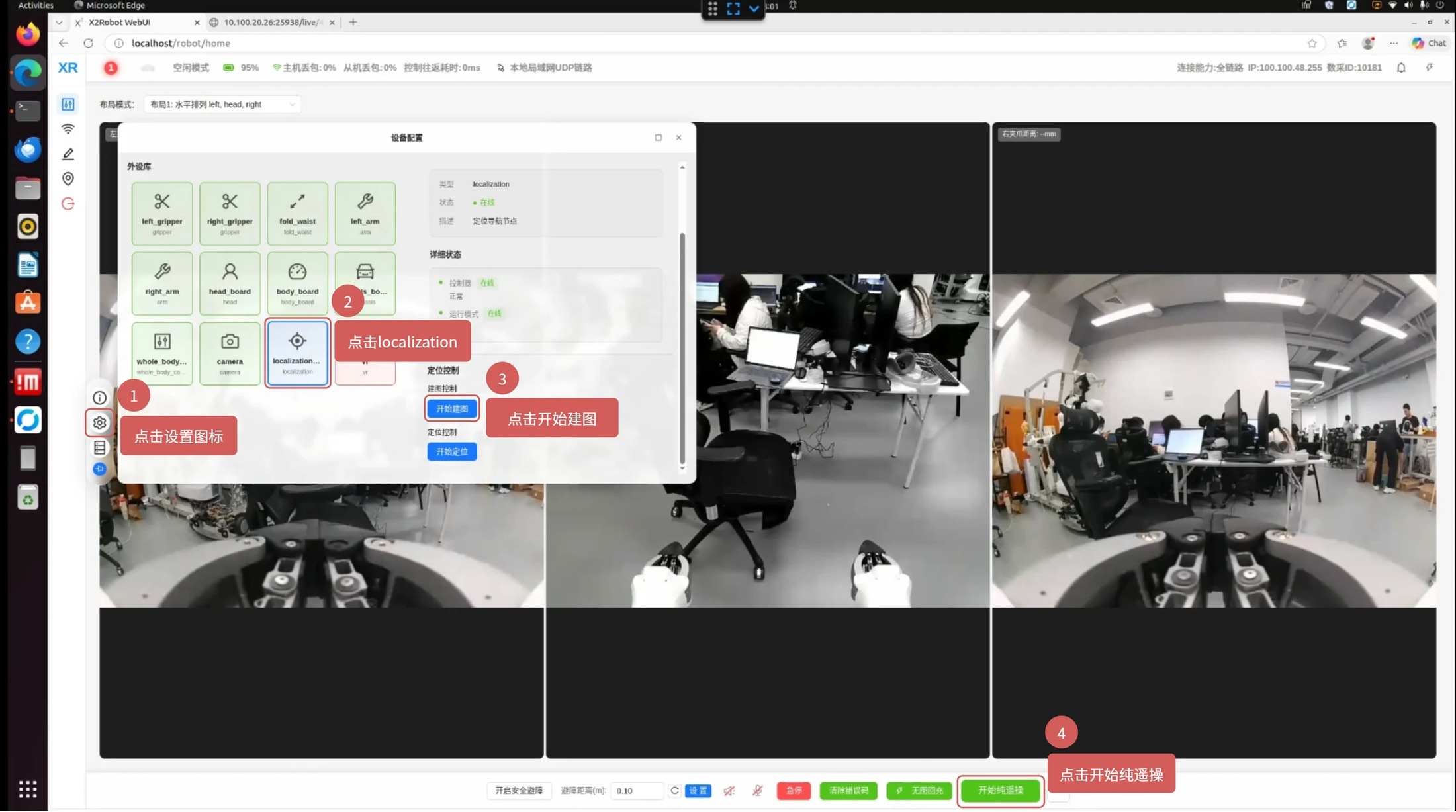
  1. Use the controller to remotely move the robot to the mapping starting position.

  2. Click the "Settings" icon on the left side of the WebUI to open device configuration.

  3. Select localization in the peripheral library and confirm that the module status is normal.

  4. Click "Start Mapping".

  5. Close the settings window and click "Start Pure Teleoperation Mode" at the bottom of the page.

  6. Remotely move the robot at low speed to cover the target area. Keep movements smooth when passing through corridors, corners, and key locations, and avoid sharp turns and collisions.

image45.jpg

Start localization mapping and pure teleoperation in the WebUI

Mapping Route Recommendations

  • First move along the perimeter of the site, then gradually cover the internal corridors;

  • Return to previously visited locations whenever possible to form closed loops;

  • Avoid staying still for long periods, rotating quickly, or repeatedly passing through areas with many dynamic obstacles;

  • Reduce speed as needed in narrow corridors and at corners;

  • Do not obstruct the navigation sensors during mapping.

Map Quality Check

After covering the environment, check that:

  • The outlines of walls and fixed obstacles are continuous;

  • There is no obvious ghosting, fragmentation, or large gaps within the same area;

  • Corridors, doorways, and corners are clear, and the map scale matches the actual environment;

  • The robot's position on the map changes continuously, without obvious jumps;

  • All key work areas have been covered.

If the map shows obvious ghosting or fragmentation, check for dynamic interference in the environment, the teleoperation speed, and the sensor status. If necessary, return to a suitable starting point and create a new map.

Common Issues

  • Map ghosting: Reduce movement and turning speeds, reduce dynamic obstacles, and form closed loops whenever possible.

  • Map not updating: Confirm that localization is operating normally and check whether "Start Mapping" has been clicked.

  • Robot cannot be remotely controlled: Confirm that "Pure Teleoperation Mode" is active and that the teleoperation device and network connections are working normally.

  • Localization jumps: Move the robot to a location with more distinct environmental features. If the scene has changed significantly, create a new map.

On this page