Data Collection Guide
Collect, export, and inspect robot data using the Quanta X1 Pro WebUI or SDK for data archiving, algorithm validation, Wall-OSS, and other model training tasks.
This guide is for users who need to collect robot data independently. Whether the data is intended for replay analysis, algorithm validation, Wall-OSS, or other model training, first collect reliable raw data, then convert it to the training format required by the target framework.
If your goal is to train Wall-OSS, continue to Data Preparation after completing the steps on this page. This page does not require the use of Wall-OSS.
Use Cases
-
Record and archive robot task execution;
-
Collect camera, robot state, and action data for algorithm analysis;
-
Prepare your own data for Wall-OSS, LeRobot, or other models;
-
Validate the teleoperation connection, sensor synchronization, and action mapping;
-
Establish a repeatable data collection and data-quality validation process.
Before You Begin
-
Confirm that the network connections for the robot, teleoperation device, and development computer are stable;
-
Check the robot's emergency stop, wireless emergency stop, and software stop functions;
-
Confirm that all camera feeds, robotic arms, grippers, the chassis, and robot status are normal;
-
Define the task name, initial state, success conditions, failure conditions, and reset procedure;
-
Confirm that the robot has sufficient local storage space;
-
Record the robot, software, firmware, calibration, and scene versions.
Quick Data Collection via WebUI
Enter Data Collection Mode
Open the mode menu on the main WebUI screen, select "Data Collection Mode", and click "Start Data Collection Mode".
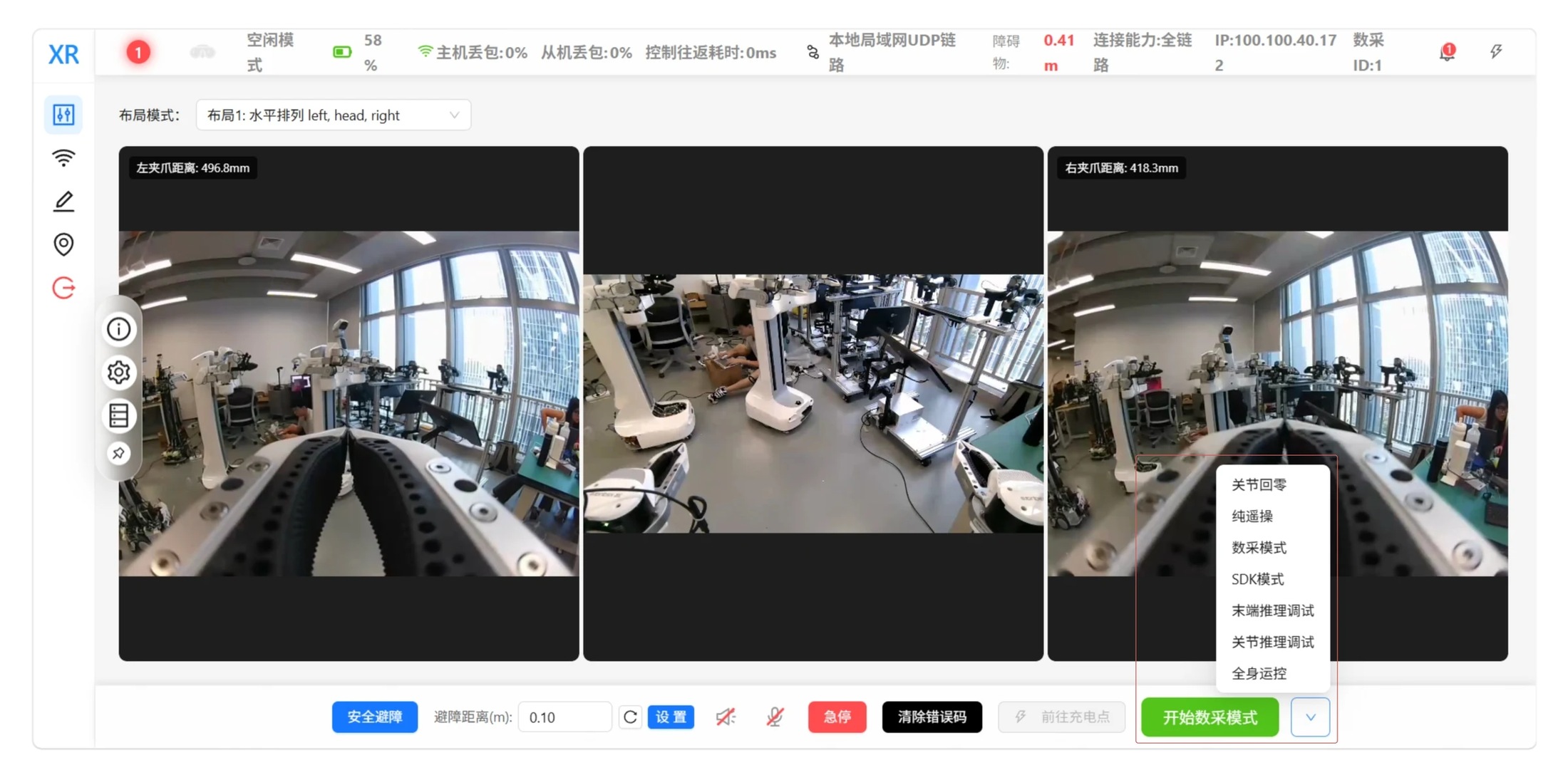
Select data collection mode in the WebUI
Create a Task
Click "New Task", enter a clear, consistent task name, and confirm. An English name that is easy to search for, such as pick_waste_test, is recommended. Keep the task name and task description consistent for the same collection objective.
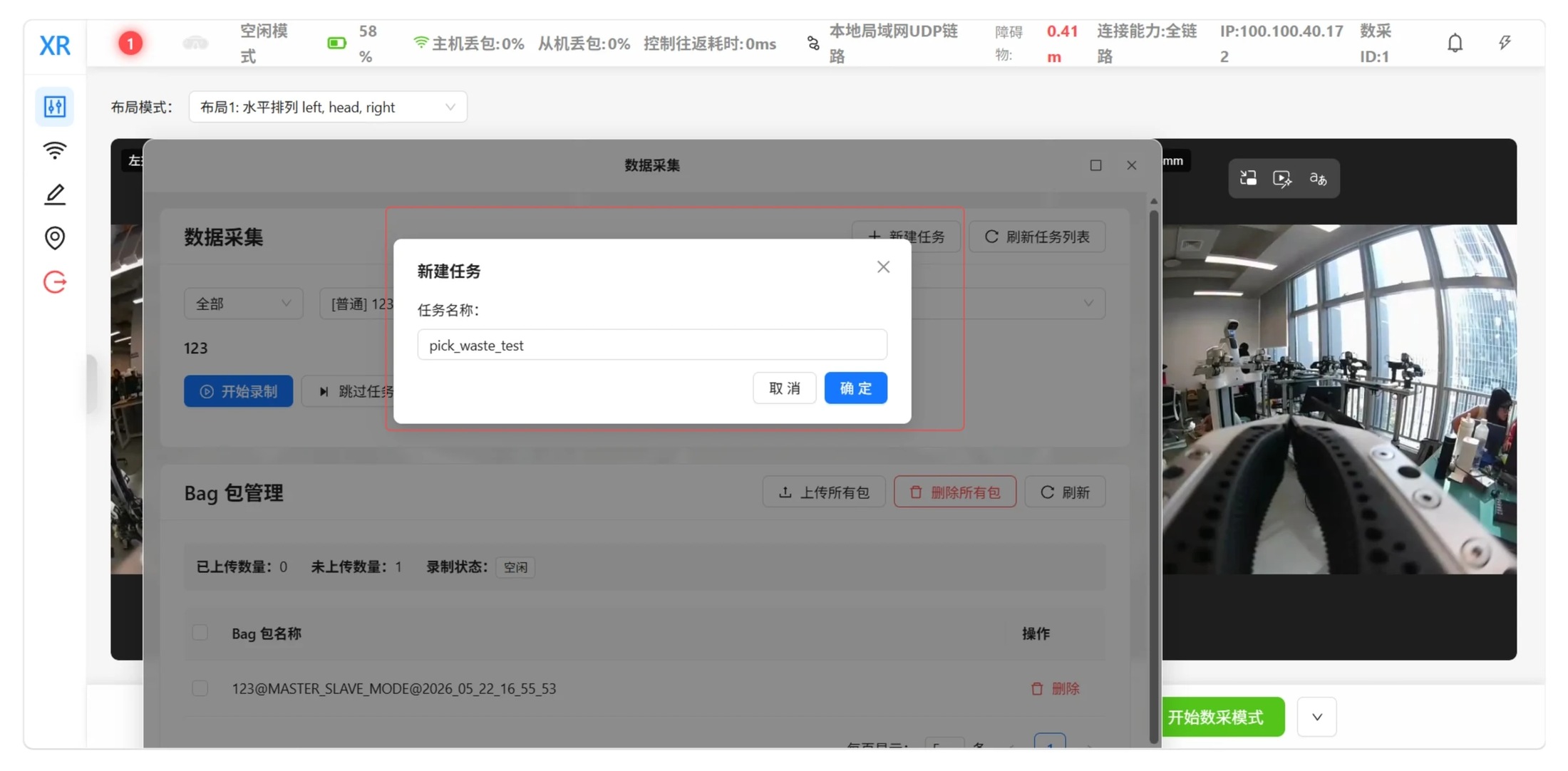
Create a data collection task
Select a Task and Start Recording
Select the target task from the task list, check the current camera feeds and robot status, and click "Start Recording". When using VR teleoperation, press and hold the B button on the right controller to start recording. When using the master arm station, press and hold the upper button on the right handle (Button 3) to start recording.
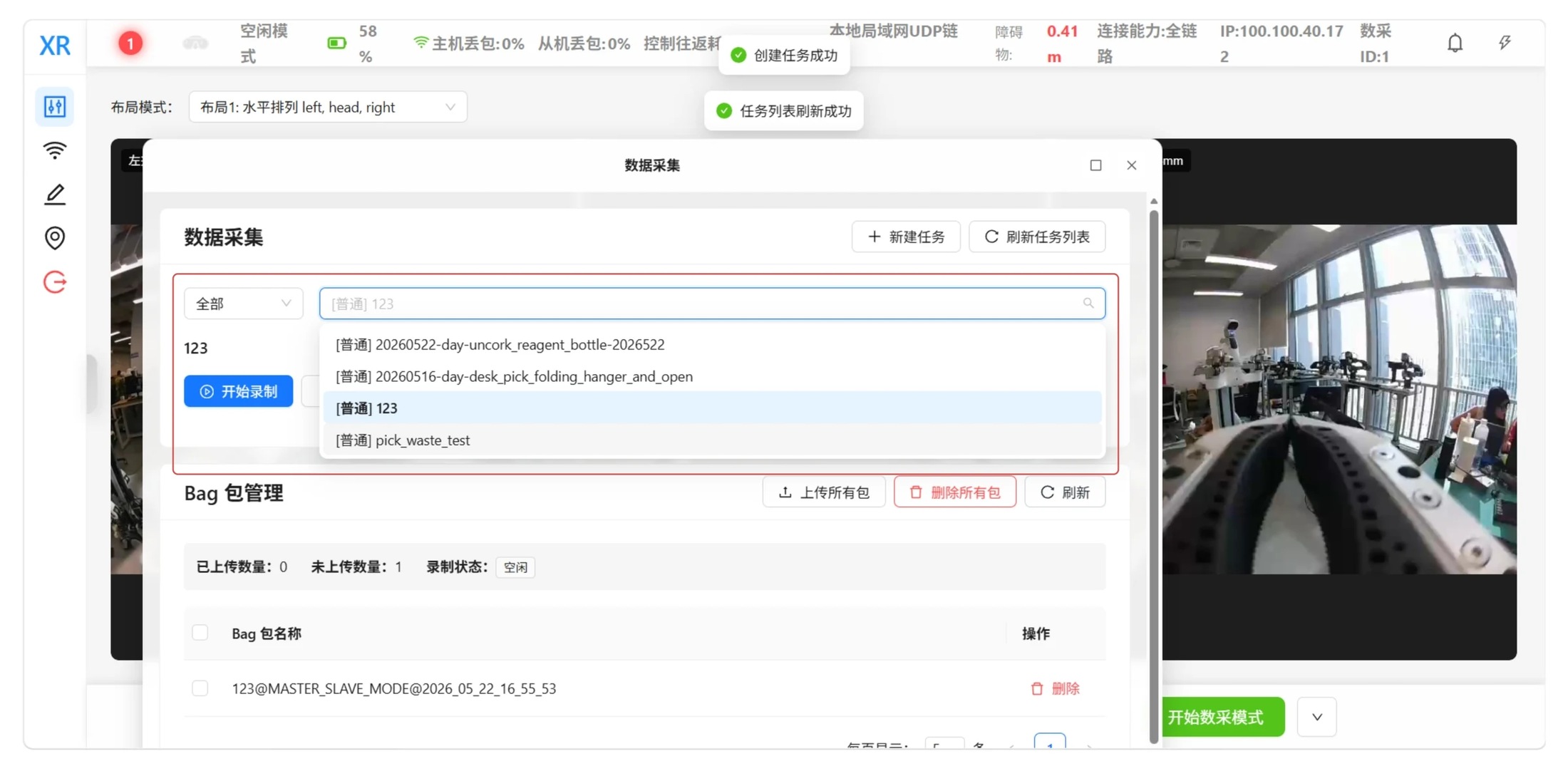
Select a task and start recording
Complete and Stop Recording
Perform the task according to a consistent procedure. Each recording corresponds to one episode. When the task is completed, fails, or requires a reset, click "Stop Recording" or use the recording button on the current teleoperation device to end the recording.
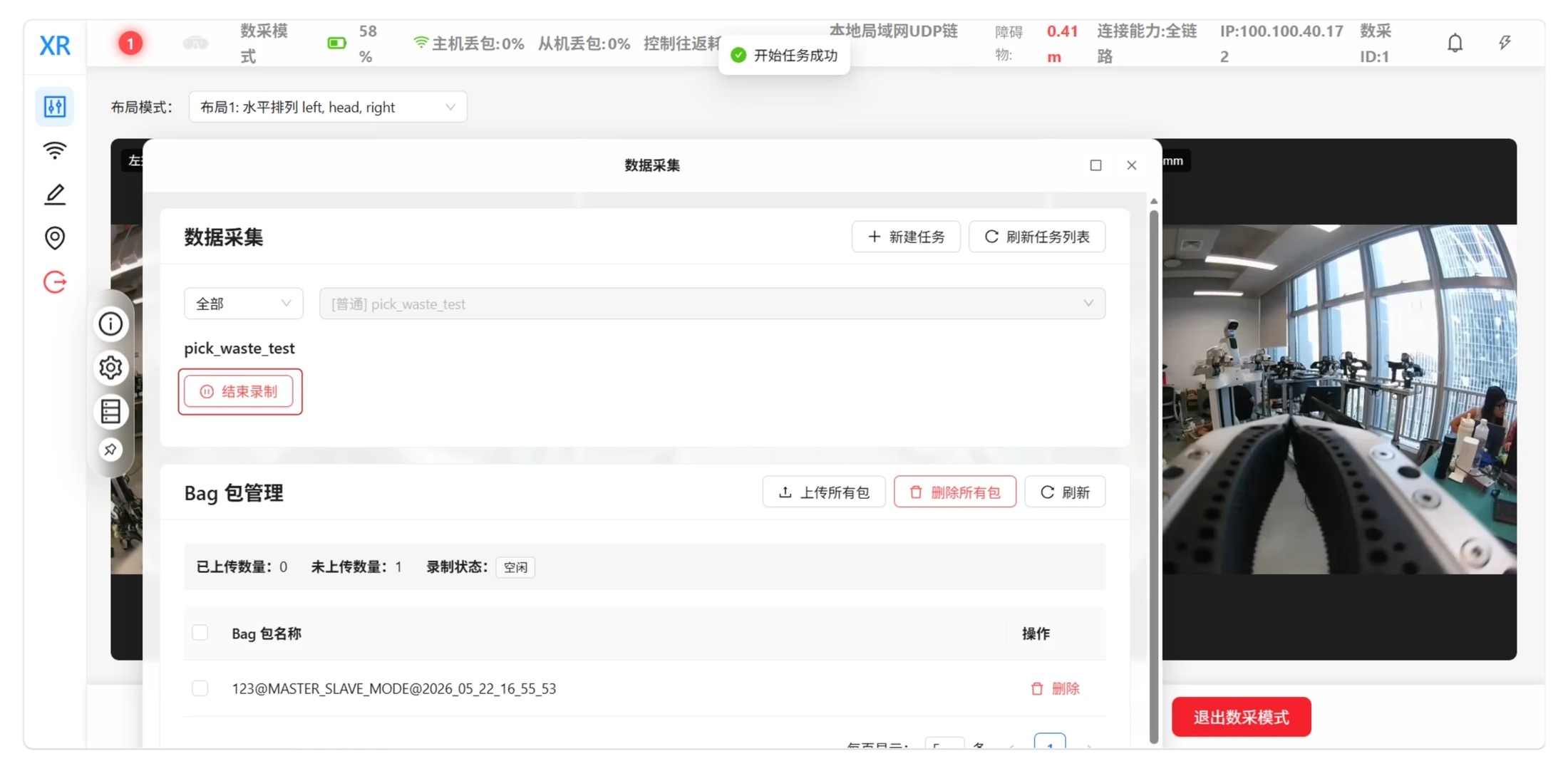
Stop the current data recording
After recording ends, first check that the data is complete. Data from successful, failed, and manually interrupted runs should be clearly labeled according to project rules and should not be mixed together.
Reset and Continue Collection
Restore the robot, objects, and environment to the agreed initial state before starting the next episode. For the first round, keep the scene and task procedure fixed. Once the data pipeline is confirmed to be stable, gradually introduce variations in positions, objects, and lighting.
Export Raw Data
Recorded data is stored on the robot:
/home/xr/bagfiles/bags_temp
Log in to the robot and open the data directory:
ssh xr@<ROBOT_IP> cd /home/xr/bagfiles/bags_temp ls -lh
If the data is saved as a tar archive, extract it using the actual file name:
tar -xvf <bag_name>.tar
Before exporting, it is recommended to keep an unmodified copy of the raw data and record the task name, episode number, collection time, operator, device versions, and collection outcome. Uploading or sharing data should be an explicit user decision.
Custom Data Collection via SDK
You can use the SDK to build a collection program when you need to customize sensor combinations, sampling frequencies, task procedures, or storage formats:
-
Establish a connection to the robot and check device status;
-
Specify the cameras, state, actions, and additional sensors to record;
-
Use a consistent sampling clock, sequence numbering, and episode boundaries;
-
Decouple control from image encoding and disk writes to prevent data collection from blocking robot control;
-
Record the target frequency, actual frequency, timestamps, and dropped-frame information;
-
Write the task text, outcome, and failure reason when ending an episode;
-
Perform integrity checks and replay a sample of the data after export.
SDK-based collection should follow the same data contract and safety requirements as WebUI collection.
Common Data Contract
Before converting to any training format, confirm at least the following:
-
Camera keys, order, resolution, FPS, encoding, intrinsics, and extrinsics;
-
The shape, dtype, units, coordinate frame, and field order of observation.state;
-
The shape, dtype, units, action mode, control frequency, and field order of action;
-
Episode boundaries, task text, outcome labels, timestamps, and frame indices;
-
The time synchronization method between cameras, state, and actions;
-
How missing frames, duplicate frames, synchronization loss, abnormal actions, and manual interruptions are labeled;
-
Robot, software, firmware, calibration, and collection scene versions.
Training Other Models
Raw bag data usually cannot be used directly for training. Before using it with other models or training frameworks:
-
Determine the observation, action, image, and task text formats required by the target model;
-
Define an explicit mapping from raw fields to target fields; do not simply truncate data to match dimensions;
-
Complete time alignment, coordinate frame conversion, unit conversion, and action range checks;
-
Convert the data to the directory structure and file formats required by the target framework;
-
Compare episode counts, frame counts, timestamps, and task labels before and after conversion;
-
Replay a sample of images, state, and actions, and confirm that directions and magnitudes are correct before training.
If the target framework uses LeRobotDataset, refer to Wall-OSS Data Preparation for information about Parquet, MP4, and metadata structures. Field semantics should still follow the target model configuration.
Data Quality Checks
-
Every episode can be replayed in full;
-
Camera videos have no obvious interruptions, reversed sequences, or long repeated segments;
-
Camera, state, and action timestamps are continuous and can be aligned;
-
The lengths of state, action, and timestamp sequences match expectations;
-
Task names, task text, and actual actions are consistent;
-
Initial state, success, failure, and reset rules remain consistent;
-
Sampling frequency is stable, and missing frames and manual interruptions can be identified;
-
The units, range, coordinate frame, and control method of action have been confirmed;
-
Raw data, conversion scripts, field mappings, and version information have all been archived;
-
Data uploads, sharing, and deletion meet project requirements.
Common Issues
-
Cannot find data after recording: Confirm that recording ended normally, and check /home/xr/bagfiles/bags_temp, disk space, and the task name.
-
Cameras and actions are out of sync: Check timestamps, sampling frequencies, buffering, and disk write blocking for each data source to determine whether synchronization was lost during sampling, transmission, or conversion.
-
Frames are dropped during recording: Reduce unnecessary image resolution or frequency, and check network bandwidth, encoding load, and disk write speed.
-
Action directions are incorrect after conversion: Verify joint order, coordinate frames, units, absolute or relative action mode, and the target model's action definition.
-
Data from different batches cannot be merged: Compare camera names, field order, calibration, sampling frequencies, and software and hardware versions. Avoid directly merging data with inconsistent data contracts.